[This page has been machine-translated.]
Restore file
Introduction
You can create a secure file
- restore to the same file,
- restore as an additional file in a data source , or
- restore as a new file in a data source .
The procedure for each of these variants is described below. Backups of files written by AGS/Omega in versions 1.4 or earlier as O5B files, as well as backups created with Omega Classic (ARJ archives), cannot be restored in this way. Please contact support if you need to restore such older backups.
Restore backup to the same file
Example use cases:
- The file is corrupted and you want to restore a secure, working version.
- Data was accidentally deleted or changed, data was incorrectly imported, or the data in the file was "corrupted" in some other way, and you would like to return to the last saved working state.
Procedure:
- In the navigator, right-click on the file you want to restore in the tree view. The context menu will open.
- Select Restore from the context menu .
- In the selection dialog, select the ZIP file you want to restore.
- Click the Open button. The file will be restored.
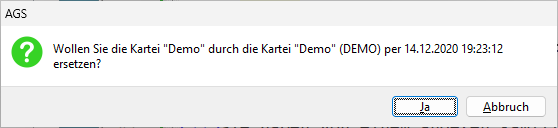
With this type of restoration, the current data in the file is irrevocably overwritten with the content of the backed-up file. The security prompt before the restoration process informs you of this.
If the ZIP archive contains a different file than the one you want to restore, an error message will appear, preventing you from overwriting one file with another. The file is identified by its identifier , not its title.
Restore backup as an additional file
Example use case:
- You have received a file in the form of a backup (ZIP archive) from another family researcher and would like to import this file onto your computer.
Procedure:
- In the Navigator, in the tree view, right-click on the data source where you want to restore the record.
- Select Restore | to original file from the context menu .
- In the selection dialog, select the ZIP file you want to restore.
- Click the Open button. The file will be restored.
If a record with the same identifier as the backed-up record already exists in the data source, the current data in the record will be irrevocably overwritten with the content of the backed-up record. The security prompt before the restore process will inform you of this.
Restore backup as an additional file
Example use cases:
- You want to view a previous version of a file from a backup without overwriting the current version by restoring the backup.
- You want to work with both a previous and the current version of a file simultaneously.
Procedure:
- In the Navigator, in the tree view, right-click on the data source where you want to restore the record.
- Select Restore | to new file from the context menu .
- In the selection dialog, select the ZIP file you want to restore.
- Click the Open button. The file will be restored.
In this method of restoring files, a new file is created with a randomly generated identifier , and the backup is restored to this file. The file title is appended with the date and time of the original backup. The file title can be shortened, as file titles are limited to a maximum of 40 characters.